


Blog updated with the most recent Shopify and eCommerce strategies on 05/02/2026.
Mastering Shopify Shipping: Your Guide to Fixing Checkout Calculation Glitches
Did you know that a staggering 48% of online shoppers bail on their carts due to unexpected shipping costs? That’s a huge chunk of potential revenue lost! Getting your Shopify shipping calculations spot-on is non-negotiable for boosting conversions, slashing cart abandonment, and keeping your customers happy. In this deep dive, we’ll break down exactly how Shopify figures out shipping rates, pinpoint those pesky common errors, walk you through the fixes, and share top-tier strategies to keep things running smoothly. We’ll even touch on the power of Shopify Plus, how third-party apps play a role, and conversion-focused tweaks. Whether you’re just starting out or managing a complex, multi-location operation, the insights from us, the BlackBelt Commerce – Shopify Plus Experts, will equip you to conquer any shipping rate challenge and ensure your checkout experience is as smooth as silk.
Unpacking Shopify’s Shipping Rate Engine: What’s Really Going On?
Shopify calculates shipping rates by meticulously reviewing your configured shipping profiles, defined zones, product characteristics, and any integrated carrier rates, then applying them to what’s in the cart and where it’s headed. This intricate dance ensures your rates align perfectly with your business rules and product specifics. Grasping each piece of this puzzle is key to spotting configuration gaps and rate discrepancies.
Here’s a breakdown of the core shipping rate components:
- Shipping Profile Rules
- Geographic Zone Coverage
- Product Weight and Price Triggers
- Carrier-Calculated Rate Integrations
Let’s compare these essential elements and see what makes them tick:
By mastering these foundational elements, you’ll be able to trace how each factor influences the final price and be prepped for targeted troubleshooting in the sections ahead.
What Exactly Are Shopify Shipping Profiles and How Do They Function?
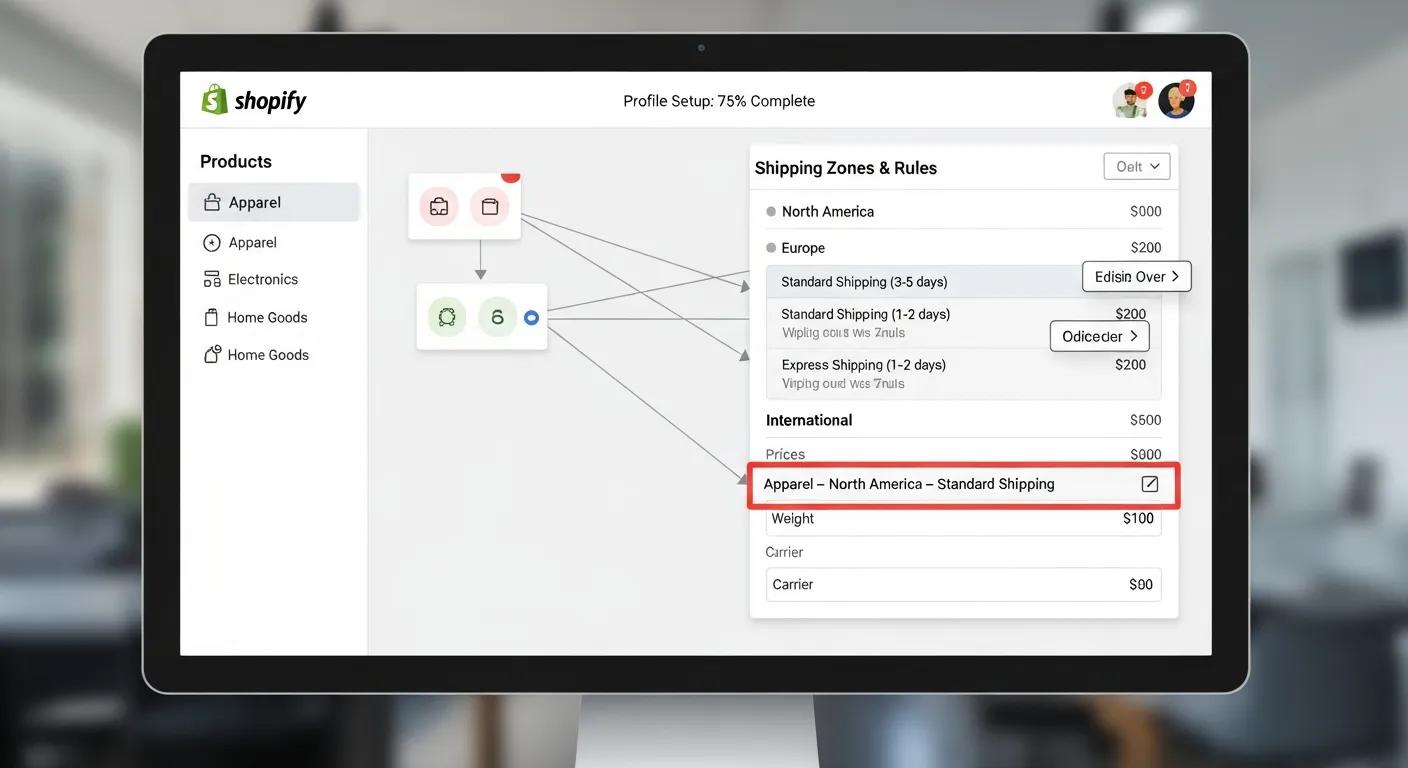
Think of a Shopify shipping profile as a smart rulebook for your products. It assigns specific shipping methods, weight or price conditions, and zone coverage to tailored groups of items. These profiles are perfect for bundling products with similar logistical needs—like large furniture or digital downloads—and applying unique rate tables to each group. For instance, your bulky furniture might live in a “Freight Profile” with custom carrier setups, while your small accessories could use standard flat-rate rules. This system gives you granular control over diverse product requirements and prevents rate headaches across your entire catalog.
Decoding Shopify Shipping Profiles
Shopify shipping profiles empower merchants to craft bespoke shipping rules for distinct products and regions, ensuring pricing accuracy and boosting customer satisfaction. They’re essentially customizable sets of shipping rates and rules you can apply to specific products or entire collections.
This explanation clarifies the crucial role of shipping profiles in Shopify’s rate calculation process.
How Do Shipping Zones and Locations Shape Your Shipping Rates?
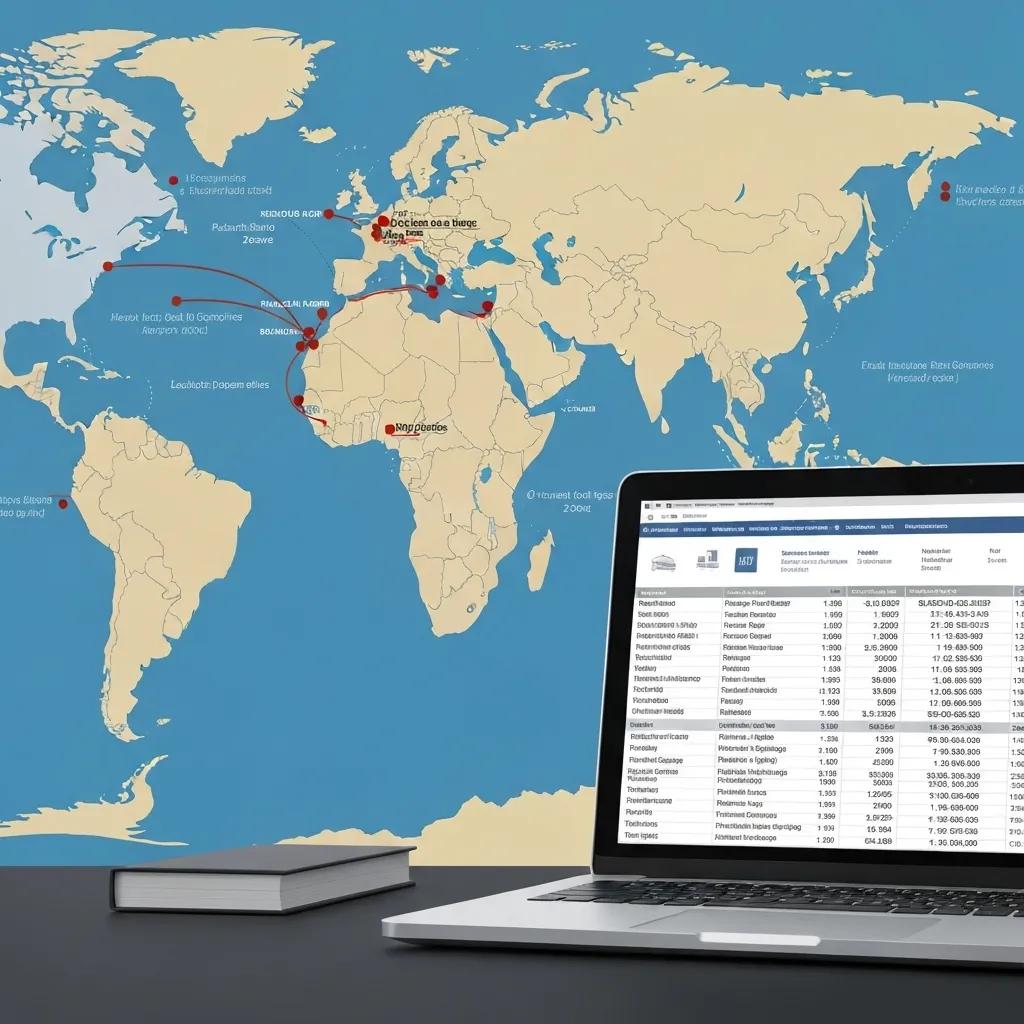
Shipping zones are your way of defining the geographic territories—think countries, states, or even specific postal codes—where your shipping profile rates are valid. Shopify checks the customer’s shipping address against these zones to present the correct rate options. Your fulfillment locations (like warehouses or distribution centers) are the physical starting points for shipments. Shopify intelligently selects rates based on the closest location that has the ordered items in stock. If your zones and locations aren’t mapped correctly, you might block valid rates or show the wrong ones, making this mapping critical for accurate calculations.
Setting Up Shipping Zones in Shopify: A Quick Guide
Shipping zones are geographical areas where a consistent set of shipping rates and rules applies. You can define these zones by country, region, or even specific zip/postal codes, giving store owners a powerful way to manage their shipping policies and costs efficiently.
This source clearly defines shipping zones and highlights their importance in managing shipping costs, a vital step for accurate rate calculations.
How Do Product Weight and Price Play a Role in Shipping Calculations?
Shopify leverages product weight and price attributes as conditional triggers within your shipping profiles. You can set up weight-based tiers (e.g., $10 for 0–5 lbs, $20 for 5–10 lbs) or price-based thresholds (e.g., free shipping on orders over $100). The system tallies up the total weight and value of items in the cart and matches them against your defined limits. Ensuring your product weights are accurate and prices are consistent is key to customers seeing the right rates. If these attributes are off or missing, you might see fallback rates or errors pop up at checkout, which we’ll tackle head-on in the troubleshooting section.
What’s the Deal with Carrier-Calculated Rates in Shopify Shipping?
Carrier-calculated rates bring live quotes from shipping giants like UPS, FedEx, and DHL directly into your Shopify store via API. When activated, Shopify sends package details (dimensions, weight) and the destination to the carrier and pulls back the real-time price. This dynamic approach offers competitive and transparent pricing by reflecting actual transit costs. However, if your API credentials are wonky or dimension settings are off, you could face rate retrieval failures or bizarre quotes. It’s crucial to double-check your carrier account permissions and package definitions.
Activating Carrier-Calculated Shipping Rates on Shopify: The Ins and Outs
Carrier-calculated shipping (CCS) rates are determined dynamically at checkout by third-party shipping carriers, ensuring your customers are charged the exact amount based on their order specifics. CCS allows you to pass on the precise cost that carriers like UPS or FedEx would charge you for a shipping label.
This source provides a solid explanation of how carrier-calculated shipping functions, which is fundamental to understanding live rate integration in Shopify.
The Usual Suspects: Common Shopify Shipping Calculation Errors Uncovered
Shipping calculation errors typically arise from configuration mismatches, inaccurate data, or conflicts between different systems. Pinpointing these root causes is your first step toward precise fixes and restoring accurate checkout rates.
Here are the key culprits:
- Incorrect shipping profile assignments
- Mismatched shipping zones and location mapping
- Product weight or dimension data blunders
- Carrier service and third-party app clashes
- Custom logic hiccups in Shopify Plus Script Editor
How Can a Screw-Up in Shipping Profile Configuration Lead to Errors?
If your products aren’t assigned to the right shipping profile, Shopify might default to incorrect rates or simply refuse to show any options. Imagine putting a massive piece of furniture into the “General Profile” without any weight conditions – you might end up with zero shipping costs or wildly inflated ones. Always double-check that each product’s shipping settings align with the profile containing the correct rate rules.
Why Do Shipping Zones and Locations Go Rogue and Cause Rate Issues?
When a shipping zone accidentally excludes a customer’s region, valid rates simply won’t appear at checkout. Likewise, if your fulfillment location isn’t linked to the corresponding zone, Shopify can’t pull up available rates. Making sure all your active locations are correctly tied to their respective zones is paramount to avoiding blank or misleading rate displays.
How Do Product Weight and Dimension Discrepancies Mess with Shipping Rates?
Incorrect weight or dimension entries are a surefire way to break carrier-calculated rates or force fallback pricing. For example, a missing weight field might cause Shopify to bypass carrier APIs and show your manual price tiers instead. Ensuring precise weight and dimensional data for every single SKU prevents these miscalculations and keeps your live quotes grounded in reality.
What Kind of Conflicts Emerge from Carrier Services and Third-Party Shipping Apps?
Third-party shipping apps can sometimes override Shopify’s native rate logic, leading to duplicate or conflicting charges. If two apps or carrier integrations are trying to manage the same zone and profiles, your checkout could present confusing options or fail to calculate rates altogether. Disabling redundant apps and auditing your rate sources is the way to resolve these conflicts.
How Can Errors in Shopify Plus Script Editor Derail Shipping Calculations?
Custom scripts in Shopify Plus offer powerful control over shipping logic—think conditional free shipping or dynamic promotions. However, bugs or infinite loops within these scripts can completely halt rate generation. Diving into your script logs within the Script Editor console will reveal exceptions that are interrupting Checkout API calls, guiding you to fix faulty code or revert recent changes.
Your Action Plan: Step-by-Step Troubleshooting for Shopify Shipping Errors
A methodical approach is your best friend when it comes to efficiently diagnosing and resolving shipping calculation issues. Follow these steps in order to get your rates back on track.
How Do You Verify Product Data for Rock-Solid Shipping Rates?
Start by auditing the weight, dimension, and HS code fields for your products within Shopify Admin. Confirm that weights are not zero, units are correct (lbs or kgs), and dimensions are consistent, especially for carrier-calculated rates. Making sure each SKU is fully populated eliminates rate fallbacks and enables accurate API quotes.
- Head over to Products → All Products.
- Open each product and meticulously check the Shipping section.
- Update any missing weight or dimension fields.
- Save your changes and, if necessary, use a CSV for bulk re-indexing.
Completing this foundational step ensures that your subsequent troubleshooting efforts are focused on configuration, not just data gaps.
How Should You Scrutinize Shipping Profiles and Zones for Errors?
Dive into Settings → Shipping and Delivery to inspect each shipping profile. Confirm that the products listed belong to their intended groups and that your zones accurately cover your active markets. Then, under each profile, meticulously verify the rate conditions—weight, price, or carrier settings—for accuracy and completeness.
How Can You Put Shopify Shipping Rates to the Test Directly in Checkout?
Simulate the checkout process by creating a draft order or using your storefront’s test mode. Add products that span different profiles, input addresses from each of your defined zones, and carefully observe the rates that appear. This hands-on validation is invaluable for spotting missing or misordered rules.
How Do You Inspect Carrier Service and Shipping App Settings with a Fine-Tooth Comb?
Navigate to Apps → Manage Apps and open each shipping or carrier integration. Double-check that your API keys are active, account permissions are correctly set, and that the zones defined within the app align with your Shopify zones. For carrier apps, ensure that package type and dimension presets match your product specifications.
How Do You Debug Shopify Plus Scripts That Are Messing with Shipping?
In Shopify Plus, open the Script Editor and head straight to the Logs. Look for any error or warning messages specifically related to shipping calculation events. Test scripts incrementally by commenting out sections and re-running your checkout simulation to pinpoint the problematic logic.
Building a Fortress: Preventing Future Shopify Shipping Calculation Errors
Implementing proactive measures is your key to ensuring long-term rate accuracy and avoiding unwelcome surprises for your customers.
Why Are Regular Audits of Your Shipping Settings Absolutely Essential?
Scheduled reviews of your profiles, zones, product data, and app integrations are crucial for catching configuration drift and new rate conflicts before they impact your checkout. Aim for quarterly audits to keep your shipping logic perfectly synchronized with your business changes.
What Are the Golden Rules for Maintaining Accurate Product Data?
Establish robust data hygiene protocols: enforce mandatory weight/dimension fields when creating products, utilize CSV templates for efficient bulk updates, and define crystal-clear guidelines for HS codes and fulfillment service assignments. Consistent data standards significantly reduce human error and keep your carrier APIs running smoothly.
How Can Shopify’s Test Environment Be Your Secret Weapon Against Shipping Issues?
Make full use of Shopify’s Test Orders and Draft Orders features to simulate checkout scenarios without incurring any actual charges. Create test addresses in each of your zones and meticulously inspect rate behavior after any shipping setting modification. This sandbox validation is your ultimate safeguard against shipping errors reaching your customers.
Shopify Plus Power-Ups: How Advanced Features Impact Shipping Troubleshooting
Shopify Plus unlocks sophisticated tools like Script Editor and advanced multi-location logic, which bring both complexity and incredible flexibility. Understanding these custom capabilities is vital for resolving advanced rate issues.
What Kind of Custom Shipping Logic Can Throw a Wrench in Rate Calculations?
Plus scripts can implement dynamic discounts, conditional free shipping, or custom surcharge rules. If the script logic is flawed—for instance, missing a crucial “return ShippingRate.new” statement—it can prevent rate objects from appearing altogether. Thorough script reviews and maintaining version control backups are your best defense against these issues.
How Do Multi-Origin Shipping and Complex Profiles Work in Shopify Plus?
Orders shipping from multiple locations are automatically split by origin; Shopify then calculates separate shipping rates for each fulfillment point. Complex profiles might combine weight and price tiers across these various origins, demanding consolidated logic. Ensuring that each location’s stock assignment aligns perfectly with profile rules is key to preventing mismatched or zero-rate errors.
How Can API Integrations Lead to Shipping Rate Conflicts?
Custom apps that leverage the Carrier Service API can inject their own rates alongside Shopify’s native calculations. When zone definitions overlap or profile assignments are mismatched, you can end up with duplicate or erroneous quotes. It’s essential to audit your custom integrations and ensure their zone mappings are in sync with Shopify’s settings to maintain a clear rate hierarchy.
Third-Party Shipping Apps: Navigating Their Influence on Shopify Shipping Rates
While third-party shipping solutions can significantly enhance your capabilities, they can also introduce potential conflicts. Managing these integrations with care is crucial to prevent calculation errors.
What Are the Common Pitfalls with Shipping Apps, and How Do You Fix Them?
Conflicts often arise when multiple apps attempt to override the same profile or zone. Identifying redundant integrations—like two dimensional weight calculators targeting identical regions—and disabling one is the most effective way to resolve duplicated or missing rates.
How Do You Get Carrier Services Configured Correctly in Shopify?
Within Settings → Shipping and Delivery, add your carrier services under the appropriate profile, then assign them to matching zones. Always verify your API credentials within the app’s settings and confirm that Shopify is displaying live quotes that correspond to each region.
How Can You Effectively Test and Debug Shipping Apps Affecting Your Checkout?
Employ a combination of test orders and the logs provided by the app itself. Simulate orders originating from various zones, scrutinize your browser’s developer console for errors, and review the rate sources to trace exactly whether Shopify or a third-party app returned each rate option.
Level Up Your Conversions: Optimizing Shopify Shipping Settings
Accurate and transparent shipping rates are a powerful driver of customer trust and a direct path to reducing cart abandonment, ultimately boosting your conversion metrics.
How Does Crystal-Clear Shipping Rate Display Slash Cart Abandonment?
Presenting precise shipping costs upfront eliminates those dreaded checkout surprises. Transparent rates that meet customer expectations significantly reduce friction at the final stage, leading to more completed purchases and a higher overall cart value.
What Shipping Strategies Elevate the Customer Experience?
Offering enticing free shipping thresholds, providing real-time carrier quotes, and presenting personalized options (like express or eco-friendly delivery) can truly elevate the shopping journey. Highlighting these choices prominently at the cart and checkout stages not only fosters upsell opportunities but also encourages customers to increase their order sizes.
How Do Weight-Based vs. Price-Based Shipping Rates Impact Your Sales?
Choosing the right approach hinges on your product mix and profit margins. Weight-based rates are ideal for heavy or variable-weight items, while price-based strategies are excellent for driving higher average order values.
Your Toolkit: Essential Resources for Tackling Shopify Shipping Errors
Having the right tools and references at your disposal can dramatically speed up the diagnosis and resolution of shipping glitches.
How to Leverage Shopify Admin and Shipping Settings for Effective Debugging?
Shopify Admin’s Shipping and Delivery section is your central hub for profiles, zones, and rate rules. Utilize its preview functionality and draft orders to test rate changes in real time. Access individual product shipping panels to inspect SKU settings and use CSVs for efficient bulk updates.
What Crucial Role Does the Shopify Script Editor Play in Troubleshooting?
The Script Editor’s logs are invaluable for uncovering syntax errors, exceptions, and logic flaws in your custom Plus scripts. By using its step-through debugging capabilities and version rollback features, you can ensure your shipping code functions flawlessly without disrupting the checkout flow.
Which External Resources and Expert Support Services Can Lend a Hand?
For those complex scenarios, professional agencies and official documentation offer advanced guidance. Our dedicated team of BlackBelt Commerce – Shopify Plus Experts specializes in diagnosing intricate shipping issues, optimizing configurations, and seamlessly integrating third-party solutions to guarantee accurate checkout rates.
Frequently Asked Questions to Conquer Shopify Shipping Calculation Puzzles
Why Are My Shopify Shipping Rates Showing Up Incorrectly or Not at All?
Incorrect or missing rates often stem from products not being assigned to shipping profiles, missing weight/dimension data, mismatched zones, or conflicting shipping apps. A thorough review of each configuration layer is usually the key to restoring accurate rate displays.
How Can I Test Shopify Shipping Rates Before Launching?
Create a draft order, select a test customer address within each of your defined zones, and proceed to checkout. Carefully compare the displayed rates against your expected calculations. It’s vital to repeat these tests after any configuration change to validate accuracy.
What Are Shopify Shipping Profiles and Why Are They So Important?
Shipping profiles are essential for assigning products to specific rate rules and zones, enabling you to implement differentiated shipping logic for various product groups. They ensure that your rates accurately reflect each item’s logistical requirements and destination rules.
How Do I Resolve Shipping Rate Conflicts Between Apps and Carrier Services?
The best approach is to disable any redundant apps, ensure your zone mappings are consistent across all integrations, and audit your rate sources within the checkout test environment. Consolidating carrier API calls under a single app or Shopify’s native carrier service is key to preventing duplicate or missing quotes.
When Is It Time to Call in the Experts for Shopify Shipping Troubleshooting?
If shipping errors persist even after you’ve meticulously verified your data, reviewed your profiles, and checked your app configurations—or if you need advanced custom logic implemented via Shopify Plus—it’s time to consult experienced professionals. Engaging experts ensures rapid, reliable resolution and safeguards your crucial conversion rates.
Spot-on shipping calculations are the bedrock of a seamless checkout experience and robust sales performance. By truly understanding Shopify’s rate mechanisms, skillfully diagnosing common errors, executing systematic troubleshooting, and adopting proactive best practices, you can transform potentially unpredictable shipping costs into a powerful strategic advantage. For those complex configurations, custom logic needs, and expert guidance, our team at BlackBelt Commerce – Shopify Plus Experts is ready to optimize your shipping setup and propel your e-commerce success to new heights.
Quick Answer: Fix Shopify checkout shipping errors
Shopify shipping services help merchants present delivery choices, rates, fulfillment workflows, tracking, and post-purchase communication in a way customers can trust. Strong shipping setup supports conversion because shoppers need clear costs, timelines, and delivery expectations before they complete checkout.
Key Takeaways
- Start with the search intent behind Fix Shopify checkout shipping errors: the reader needs a clear explanation before they are ready for a service conversation.
- Keep the advice practical and specific so the post feels editorial, useful, and worth sharing.
- Use the topic cluster links to connect the article to related BBC expertise instead of leaving it as a standalone blog post.
- Add a natural commercial bridge only after the article has answered the reader’s main question.
- Use the same-page Calendly CTA so qualified readers can book a strategy call without being sent to a long form.
How this connects to your Shopify growth strategy
This article should remain useful for readers researching Fix Shopify checkout shipping errors, but it also needs to show when the topic becomes a business decision. For the Shopify Troubleshooting and Store Health cluster, the commercial bridge is practical: once the reader understands the concept, the next step is deciding whether their current Shopify setup can support the desired experience, conversion path, and operational workflow. That is where expert planning, design, development, CRO, and SEO support can turn the idea into measurable store improvements.
Related Shopify resources
These internal resources support the Shopify Troubleshooting and Store Health topic cluster and help connect this guide to stronger commercial next steps:
- Shopify Troubleshooting and Store Health
- Shopify experts
- Shopify Plus agencies
- Shopify Troubleshooting and Store Health — Parent service page for the reader’s next commercial step
- Blackbelt Commerce — Home-page authority link for brand and core Shopify expertise
- Shopify Plus agencies — Money-page link requested for high-growth and Plus-agency intent
- Shopify custom development — Development service page for implementation and technical help
- Shopify CRO — Conversion service page for readers focused on revenue and lead generation
Questions store owners ask before taking action
What does Fix Shopify checkout shipping errors mean for a Shopify merchant?
For a Shopify merchant, Fix Shopify checkout shipping errors is about choosing or improving the store experience in a way that supports traffic, trust, conversion, and long-term operations.
When should a store owner get expert help?
Expert help becomes useful when the decision affects SEO, conversion, theme architecture, integrations, migration risk, or revenue-critical customer journeys.
How should this topic connect to a broader content cluster?
The post should link to a parent service page, related support articles, and money pages so Google and AI systems understand how the article supports a broader area of expertise.
What is the lead-generation goal of this article?
The article should educate first, then guide qualified readers toward booking a strategy call when they need help applying the advice to their own store.
What should be avoided during optimization?
Avoid filler, unrelated phrases, invented statistics, broken formatting, duplicated CTAs, and any edit that makes the article feel less helpful or less polished.
Future articles needed for topical dominance
To build deeper topical authority around this cluster, these supporting topics should be created later and linked back into this article:
- Fix Shopify Checkout Shipping Errors Checklist for Shopify Store Owners: Creates a practical support article that turns the Shopify Troubleshooting and Store Health topic into an actionable review tool.
- Common Fix Shopify Checkout Shipping Errors Mistakes and How to Avoid Them: Captures problem-aware searches and gives BBC a natural place to explain implementation risks without hard selling.
- When to Hire Shopify Experts for Fix Shopify Checkout Shipping Errors: Connects informational demand to the expert-hiring money page while preserving educational intent.

