


Shopify Debut Theme Customization: Panic-Free 2024
Your First Step to a Beautiful Store
Shopify Debut theme customization is the process of personalizing your free Shopify theme to match your brand and boost performance. Without coding, you can customize:
- Colors and Typography – Change brand colors and fonts in Theme Settings
- Homepage Layout – Add or remove sections like slideshows, featured products, and testimonials
- Product Pages – Enable image zoom, filtering, and recommendations
- Header and Footer – Upload logos, create menus, and add social links
- Mobile Experience – Ensure a responsive design on all devices
The Debut theme is free, but your store doesn’t have to look basic. Since 94% of first impressions are design-related, customization is key for building trust and sales.
Why Debut Still Matters
While Shopify now defaults to the Dawn theme, Debut is a reliable, beginner-friendly option. It’s ideal for new merchants wanting a professional look without the complexity of newer themes. The theme editor is simple: drag and drop sections, change colors, and see live updates. No coding needed.
About Your Guide
I’m Cesar A Beltran, founder of Blackbelt Commerce. With over 15 years of experience helping 1000+ businesses optimize their Shopify stores, I’ve seen how the right design choices can transform a basic store into a conversion machine. Let me show you how.

Simple shopify debut theme customization glossary:
Step 1: Align Your Brand with Your Theme’s Design
Shopify debut theme customization isn’t just about aesthetics; it’s about creating a visual identity that builds customer trust. Before you enter the theme editor, ensure your choices align with your brand for a professional and consistent feel that turns browsers into buyers.
Define Your Visual Brand Identity
You don’t need a fancy logo to build a strong brand. You need clarity on your brand values, mission, and target audience. These fundamentals guide every design decision.
Color psychology is key, as colors trigger emotions. For natural products, use earthy tones like browns and greens. For tech, try clean blues and grays. Find inspiration at Color Hunt.
For typography, stick to two or three fonts to avoid a cluttered look. Use different weights and styles within the same font family for variety. Canva’s Guide to Pairing Fonts is a great resource for this.
Finally, high-quality imagery that aligns with your brand story is non-negotiable. It’s often the first thing customers notice. For more conversion-focused design strategies, see our guide on More Shopify Design Strategies.
Using the Theme Settings Panel
Now, bring your brand vision to life. The Theme Settings panel is your command center for site-wide changes. To access it, go to your Shopify admin, steer to Online Store > Themes, find Debut, and click Customize. The gear icon in the left sidebar is your Theme Settings.
In the Colors section, enter your brand’s hex codes for consistency. In the Typography section, select your heading and body fonts from Debut’s selection of fast-loading, web-safe options.
Don’t forget the details. Add your social media links and upload a favicon (the small icon in browser tabs) to look more professional. Pay attention to the checkout settings; add your logo to maintain brand consistency. The add to cart notification is another small touch that improves the user experience.
Save your progress regularly. Getting this foundation right makes all other customizations easier.
Step 2: A Deep Dive into Shopify Debut Theme Customization
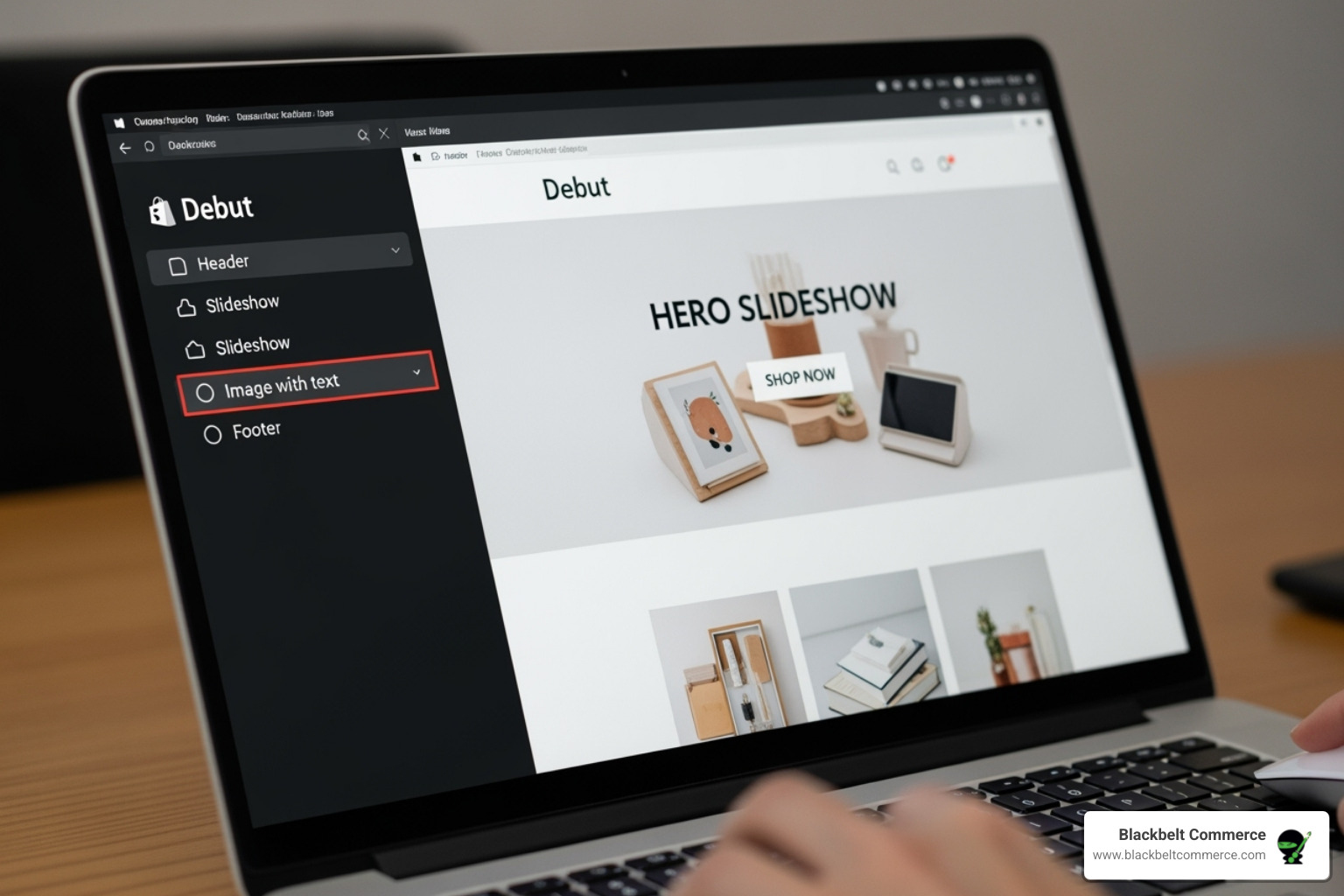
The Shopify theme editor is your creative playground for building your store’s pages with pre-built “sections” and “blocks.” No coding knowledge is required to create a unique layout. Debut’s clean design is an ideal canvas for showcasing your brand and products.
Navigating the Theme Editor and Sections
Think of sections as pre-designed content blocks (like a slideshow or testimonials) that you can add, remove, and rearrange. Blocks are the smaller, customizable pieces within those sections.
To start your shopify debut theme customization:
- From your Shopify admin, go to
Online Store > Themes. - Find the Debut theme and click
Customize.

The left sidebar is your customization headquarters. The Sections tab shows all sections on your page; click one to edit its settings. Use the Add section button to access Debut’s library of options like “Image with text” or “Featured collection.” The drag-and-drop interface lets you reorder sections instantly.
Debut’s section-based structure pioneered what became the foundation for Shopify’s Online Store 2.0, so the skills you learn here are transferable. For more insights, see our guide on How to Customize a Theme for Your Shopify Store.
Customizing Your Homepage for Maximum Impact
Your homepage is your digital storefront. Since 94% of first impressions are design-related, getting it right is critical. Debut provides excellent tools to create a stunning homepage without code.
- The slideshow section is for making a bold first impression. Use high-quality images (1200-2000px width by 400-600px height) to spotlight key products or promotions.
- Your featured collection section highlights best-sellers or new arrivals.
- Testimonials build trust and credibility. While manually entered in Debut, they provide powerful social proof.
- The image with text overlay section is versatile for combining compelling imagery with clear calls to action.
- A homepage video from YouTube or Vimeo can bring your brand to life.
- The promotional banner is perfect for announcing offers like free shipping.
- A newsletter signup is essential for building your email list.
Avoid common pitfalls that can sabotage your efforts by reading our article on 3 Shopify Design Mistakes to Avoid.
Perfecting Your Product and Collection Pages
Your product and collection pages turn browsers into buyers. Optimizing them for clarity is crucial for shopify debut theme customization.
On product pages, Debut offers powerful options. Image zoom is valuable for products where details matter. Product filtering helps customers find items quickly. Product recommendations are conversion gold, showcasing related items to increase average order value. Ensure your variant labels and quantity selector are clear to avoid confusion.
For collection pages, choose between grid view and list view. Enable product filtering and sorting by attributes like size, color, and price to create a smooth browsing experience.
Avoid usability issues that destroy conversions by reading our insights on Your Customers’ Perspective: 3 Usability Killers in Shopify Themes.
Optimizing Your Header and Footer Navigation
Your header and footer are the backbone of your store’s navigation, providing consistent access to key information.
Your header is the command center. Use logo upload and alignment to control your brand identifier. Organize your main menu clearly, using a multi-level menu with dropdowns for larger catalogs. The announcement bar at the top is prime real estate for important messages.
Your footer acts as a sitemap. Payment icons communicate security. Social media icons encourage connection. Include essential links like About Us, Contact, FAQ, and policy pages to build trust. A second newsletter signup here can capture more leads.
A well-organized header and footer create a professional, user-friendly experience.
Step 3: Improve User Experience and Boost Conversions
A great-looking store is only half the battle. Your customizations must also create a smooth, intuitive shopping experience that turns browsers into buyers. This is where shopify debut theme customization truly shines. If customers can’t find what they need or struggle to check out, they’ll leave. User experience is everything.
Ensure a Flawless Mobile Experience
Mobile responsiveness is a necessity. With 79% of smartphone users making online purchases on their devices, your store must function perfectly on smaller screens. The Debut theme is mobile-friendly, but you must ensure your customizations maintain that standard.

Testing on mobile devices is essential. Use Shopify’s built-in mobile preview, but also check your store on actual phones. What looks great on a desktop can be unusable on mobile.
Optimizing images for mobile is crucial for speed. Large images slow down your site, causing visitors to leave. Compress images without sacrificing quality.
For mobile-first design, screen real estate is precious. Your most important content and calls to action must be visible and easily tappable. Keep navigation simple and intuitive for thumbs, not mice.
Using Analytics and Testing for Continuous Improvement
Customizing your Debut theme is an ongoing process. Use data-driven decisions to understand what your customers want.
Shopify Analytics and Google Analytics offer insight into customer behavior. They show where visitors come from, which pages they visit, and where they abandon their cart. A high bounce rate on a product page signals a problem. We’ve seen simple changes—like moving a testimonial or changing a button color—dramatically improve conversion rates.
A/B testing, available through Shopify apps, lets you test two versions of an element (like a headline) to see which performs better.
The most successful stores accept continuous improvement. They implement changes based on data and test again. This iterative process ensures your shopify debut theme customization efforts lead to higher conversions.
For more on creating personalized experiences, explore our guide on How to Personalize Your E-commerce Store with Shopify.
Step 4: Simple “Code-Free” Hacks and Best Practices
These final tips will help you polish your shopify debut theme customization with professional image standards and powerful app integrations, all without any coding.
Recommended Image Sizes and Text Column Customizations
The difference between a “homemade” and a “professional” store often comes down to image quality and sizing. Correct dimensions are crucial for the Debut theme to avoid pixelated images or slow load times.
Here’s a cheat sheet for image sizing:
- Slideshow images: 1200-2000px width by 400-600px height. These are your hero images, so make them count.
- Collection images: 800-2048px square.
- Product images: 800-2048px square. Shopify recommends 2048 × 2048 px for the best zoom, but smaller, high-quality images also work well.
- Image with text overlay: 1200-2000px width by 400-600px height, keeping them consistent with slideshows.
Pay attention to your text columns. Break up large blocks of text with headings and use comfortable font sizes to ensure readability on all devices.
Extending Functionality with Shopify Apps
When you need extra functionality, the Shopify App Store is your secret weapon. Apps can add features like product reviews, advanced search, and pop-ups to capture emails.
We recommend incorporating dynamic customer reviews. While Debut’s testimonials are good, apps can showcase real customer photos and star ratings that update automatically. You can incorporate customer reviews with an app like Product Reviews to add essential social proof.
For larger catalogs, search is critical. You can improve search with Shopify Search & Findy to add filtering, predictive search, and improve product findability.
A pro tip: choose quality over quantity. Too many apps can slow down your site. Select apps that solve real problems for your business. At Blackbelt Commerce, we help clients find the right balance between functionality and performance to improve their shopify debut theme customization without compromising speed.
Frequently Asked Questions about Debut Theme Customization
Here are answers to the most common questions I’ve received over 15+ years of helping merchants with shopify debut theme customization.
How do I remove the “Powered by Shopify” text in the footer?
This is the most popular question. Removing this link makes your store look more professional, and it takes less than a minute.
Go to your theme editor, click the three dots (…) next to your theme name, and select “Edit default theme content”. In the filter box, type “powered”. You’ll see a box labeled “Powered by Shopify.” Delete the text inside, type a single space, and click save. The text will disappear.
Is the Debut theme still a good choice in 2024?
Yes, Debut is still a fantastic choice, especially for certain businesses. While Dawn is Shopify’s new default, Debut has key advantages: it’s incredibly fast and beautifully simple. This makes it perfect for beginners or anyone who feels overwhelmed by more complex themes.
I recommend Debut for stores with smaller product catalogs, service-based businesses, or merchants who want to launch quickly. Its proven reliability and straightforward structure make it a solid foundation.
Can I add custom fonts to the Debut theme?
Yes, but it usually requires editing the theme’s CSS files or using a font app. For most merchants doing shopify debut theme customization, I recommend sticking with the built-in font options under Theme settings > Typography.
Debut includes a great selection of web-safe fonts that are optimized for performance and look professional. If you absolutely need a specific custom font, be aware that it requires some technical knowledge and can potentially slow down your site if not implemented correctly. My advice is to start with the built-in options.
Conclusion: Your Custom Store Awaits
Congratulations! You now know how to use Shopify Debut theme customization to transform a free theme into a professional, brand-focused storefront without writing any code.
We’ve covered defining your brand, navigating the theme editor, optimizing for mobile, and extending functionality with apps. Debut’s simplicity provides a solid foundation while giving you creative control over your store’s appearance and user experience.
The key takeaways for your customization journey:
- Leveraging the theme editor effectively to create stunning layouts and optimize pages for conversions.
- Focusing on brand consistency with colors, fonts, and images to build trust.
- Prioritizing the user experience, especially on mobile, where 79% of smartphone users make purchases.
We’ve seen countless businesses succeed with this versatile theme. It has proven itself as a reliable foundation for e-commerce success.
When you’re ready to go beyond DIY customization, you might need professional expertise for advanced functionality or a completely unique design.
That’s where we come in. At Blackbelt Commerce, we’ve spent over 15 years helping businesses transform their Shopify stores into conversion machines. Our team specializes in fully customized, conversion-focused Shopify solutions with a track record of top-rated client satisfaction, even for complex, large-scale projects.
Whether you need advanced app integrations, custom functionality, or a complete design overhaul, we’re here to help. Explore our Shopify theme customization services to see how we can transform your vision into reality.
Your custom store awaits. With the foundation you’ve built, you’re well on your way to e-commerce success.
Quick Answer: shopify debut theme customization
Shopify theme customization changes a store’s design, layout, navigation, product presentation, and conversion flow without rebuilding the entire platform. The best customizations improve the shopping experience while preserving speed, SEO structure, and future maintainability.
Want a sharper Shopify growth plan?
If this article connects to a current store decision, use the calendar to book a strategy call and turn the idea into a practical plan.
Key Takeaways
- Shopify theme customization should improve the storefront experience while protecting speed, SEO structure, mobile usability, and future maintainability.
- Useful customization work connects design changes to product discovery, trust, conversion paths, merchandising, and operational needs.
- Internal links should reinforce Shopify landing page design, custom development, Shopify experts, and Shopify Plus agency support where natural.
- The commercial bridge should show when a theme change becomes a strategic UX, CRO, or development project.
- Use the same-page Calendly CTA so qualified merchants can book a strategy call without being pushed into a long form.
How this connects to your Shopify growth strategy
This article should remain useful for readers researching shopify debut theme customization, but it also needs to show when the topic becomes a business decision. For the Shopify Custom Development, Design, and Technical Implementation cluster, the commercial bridge is practical: once the reader understands the concept, the next step is deciding whether their current Shopify setup can support the desired experience, conversion path, and operational workflow. That is where expert planning, design, development, CRO, and SEO support can turn the idea into measurable store improvements.
Want a sharper Shopify growth plan?
Use this guide as a decision tool. Then book a strategy call when you want a practical roadmap for your store.
Related Shopify resources
These internal resources support the Shopify Custom Development, Design, and Technical Implementation topic cluster and help connect this guide to stronger commercial next steps:
- Shopify Custom Development
- Shopify experts
- Shopify Plus agencies
- Shopify Custom Development — Parent service page for the reader’s next commercial step
- Blackbelt Commerce — Home-page authority link for brand and core Shopify expertise
- Shopify experts — Money-page link requested for expert-hiring intent
- Shopify Plus agencies — Money-page link requested for high-growth and Plus-agency intent
- Shopify CRO — Conversion service page for readers focused on revenue and lead generation
- Shopify checkout optimization — Related conversion article
- Shopify conversion optimization — Related CRO article
Questions store owners ask before taking action
What does it mean to customize a Shopify theme?
It means adjusting the store’s design, sections, templates, navigation, product presentation, and customer journey so the site better supports the brand and buying experience.
What should merchants customize first?
Start with high-impact areas such as the homepage, collection pages, product pages, navigation, mobile experience, trust signals, and conversion-focused calls to action.
Can theme customization hurt SEO or performance?
Yes, if changes add slow scripts, break heading structure, remove important content, create duplicate templates, or make the mobile experience harder to use.
When should a merchant hire Shopify experts for theme customization?
Expert help is useful when design changes require custom code, conversion strategy, app cleanup, SEO protection, complex templates, or a reliable QA process.
How should this article lead to a strategy call?
It should educate readers on safe customization decisions, then invite qualified merchants to book a call when they need help improving the storefront without damaging performance or SEO.
Future articles needed for topical dominance
To build deeper topical authority around this cluster, these supporting topics should be created later and linked back into this article:
- Shopify Debut Theme Customization Checklist for Shopify Store Owners: Creates a practical support article that turns the Shopify Custom Development, Design, and Technical Implementation topic into an actionable review tool.
- Common Shopify Debut Theme Customization Mistakes and How to Avoid Them: Captures problem-aware searches and gives BBC a natural place to explain implementation risks without hard selling.
- When to Hire Shopify Experts for Shopify Debut Theme Customization: Connects informational demand to the expert-hiring money page while preserving educational intent.
Want a sharper Shopify growth plan?
Ready to turn the advice in this article into an action plan? Open the calendar here and choose a time that works for you.

