


Quick answer
First, Custom Liquid in Shopify Dawn refers to using the built-in 'Custom Liquid' section (available in the Theme Editor) or creating new .liquid section files to add HTML, CSS, and Liquid code directly to the Dawn theme. Method 1 (built-in section) is the fastest approach for simple additions; Method 2 (dedicated section files with schema JSON) gives full control, reusability, and Theme Editor integration.
Custom Liquid Shopify Dawn Guide
custom liquid shopify dawn Custom Liquid Shopify Dawn sections let merchants add flexible code blocks, custom layouts, and store-specific functionality without rebuilding the theme. If you need hands-on support, Blackbelt Commerce can help you turn this guidance into a practical Shopify growth plan.
Why Custom Liquid is Essential for Dawn Theme Success
Custom liquid shopify dawn opens your store’s full potential by adding features that go far beyond the theme editor’s standard options. While Dawn’s native settings are powerful, they still cap what you can do if you want a storefront that truly stands out.
Quick Answer for Custom Liquid in Shopify Dawn:
- Built-in Custom Liquid Section – Add HTML, CSS and Liquid directly in the theme editor.
- Custom Section Files – Create new
.liquidfiles for reusable components. - Common Use Cases – Dynamic shipping messages, custom headings, advanced product data and cart improvements.
- Key Benefits – No app bloat, faster load times and pixel-perfect design control.
Many Dawn users run into a common headache: “Theme updates removed my custom code!” That happens when you edit core theme files instead of using modular sections or blocks.
Because Dawn follows an HTML-first, JavaScript-only-as-needed philosophy, custom Liquid is fast, SEO-friendly and runs safely on Shopify’s servers. It lets you integrate metafields, display conditional content and craft shopping experiences that convert far better than stock themes.
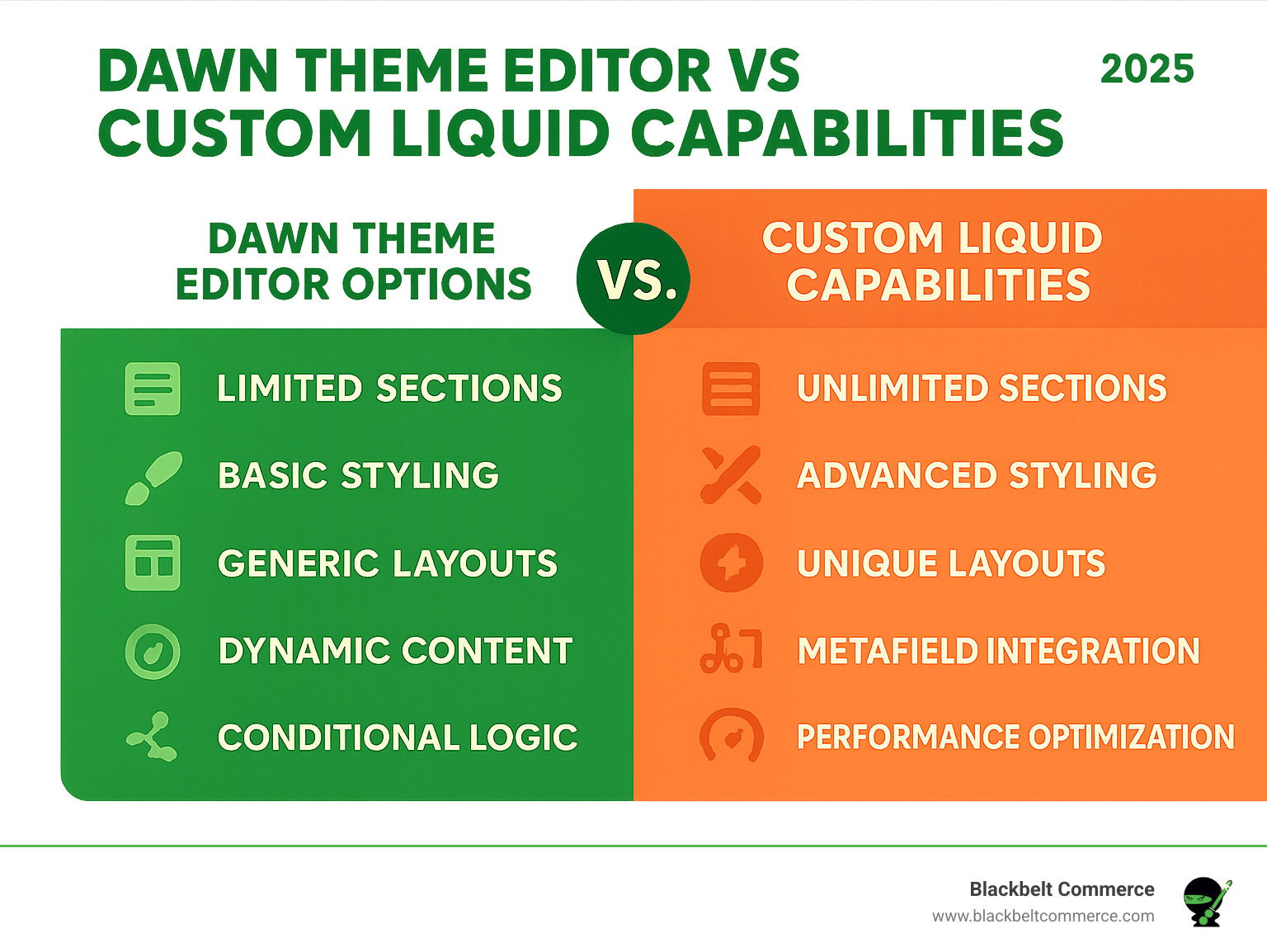
Simple custom liquid shopify dawn glossary:
Need custom Liquid without breaking Dawn?
Book a free strategy call and we’ll review your Dawn theme, custom Liquid needs, and safest implementation path.
What is Custom Liquid and Why Use It in the Dawn Theme?
Let me break down custom liquid shopify dawn in simple terms. Shopify Liquid is like a translator that takes information from your store’s database and displays it beautifully on your website. It’s the engine behind every Shopify theme, turning raw data about your products, collections, and customers into the polished storefront your visitors see.
Dawn uses Shopify’s Online Store 2.0 architecture, which works like building blocks. You can add, remove, and rearrange sections and blocks directly in the theme editor. It’s pretty flexible, but here’s the thing – even Dawn has limits. The built-in options only go so far, and that’s where custom liquid shopify dawn becomes your secret weapon.
Why not just use an app instead? While apps seem convenient, they often inject heavy code into your theme that can slow down your site significantly. Nobody wants a sluggish store – it hurts your SEO rankings and frustrates customers who expect lightning-fast loading times.
Custom Liquid takes a different approach. It runs server-side, meaning Shopify’s servers do all the heavy lifting before sending clean HTML to your customer’s browser. This HTML-first approach keeps your site blazing fast while giving you complete creative control. You get unique features perfectly custom to your brand without the performance penalties.
The performance benefits are huge. When you avoid app code injection and stick to server-side rendering, your store loads faster and ranks better in search results. Plus, you’re not locked into someone else’s design limitations – you have full creative control over every pixel.
The Power of the “Custom Liquid” Section
Dawn comes with a fantastic built-in feature called the “Custom Liquid” section. Think of it as your personal playground right inside the theme editor. This built-in functionality lets you add HTML, embed scripts, and inject custom code without touching any core theme files.
What makes this so powerful is how it bridges the gap between no-code and low-code solutions. You don’t need to be a developer to use it, but you can still create something truly unique. The theme editor integration means you get real-time previews of your changes, making it perfect for quick modifications and experiments.
Whether you want to add a custom banner, embed a special form, or display dynamic content that isn’t available through standard settings, this section has you covered. It’s like having a Swiss Army knife for ease of use customizations.
Going Beyond: Creating Custom Sections with Liquid
Sometimes your vision needs more than the built-in options can provide. That’s when we move into full theme development territory by creating entirely new .liquid files in your theme’s code.
This approach involves creating reusable components with their own settings and configurations. We can build complex logic, integrate with Shopify’s powerful metafield system, and craft advanced customizations that truly set your store apart. Each custom section gets its own file in the sections directory, complete with schema tags that define settings and options.
The beauty of this method is that these sections become part of your theme’s toolkit. You can use them across multiple pages, configure them differently for various sections, and even share them between different templates. It’s like building your own custom theme components that perfectly match your brand’s needs.
Want to learn more about building from scratch? Our guide on How to build your own Shopify theme shows you exactly how powerful this advanced customization approach can be.
How to Add and Implement Custom Liquid in Shopify Dawn
Ready to add some custom liquid shopify dawn magic? Below are two proven methods. First, duplicate your theme (Online Store › Themes › Actions › Duplicate) so any mistakes live in a safe copy.
Method 1 – Built-in “Custom Liquid” Section (fastest)
- In the Theme Customizer click Add section.
- Choose Custom Liquid.
- Paste your HTML/Liquid. Preview updates instantly.
- Click Save.
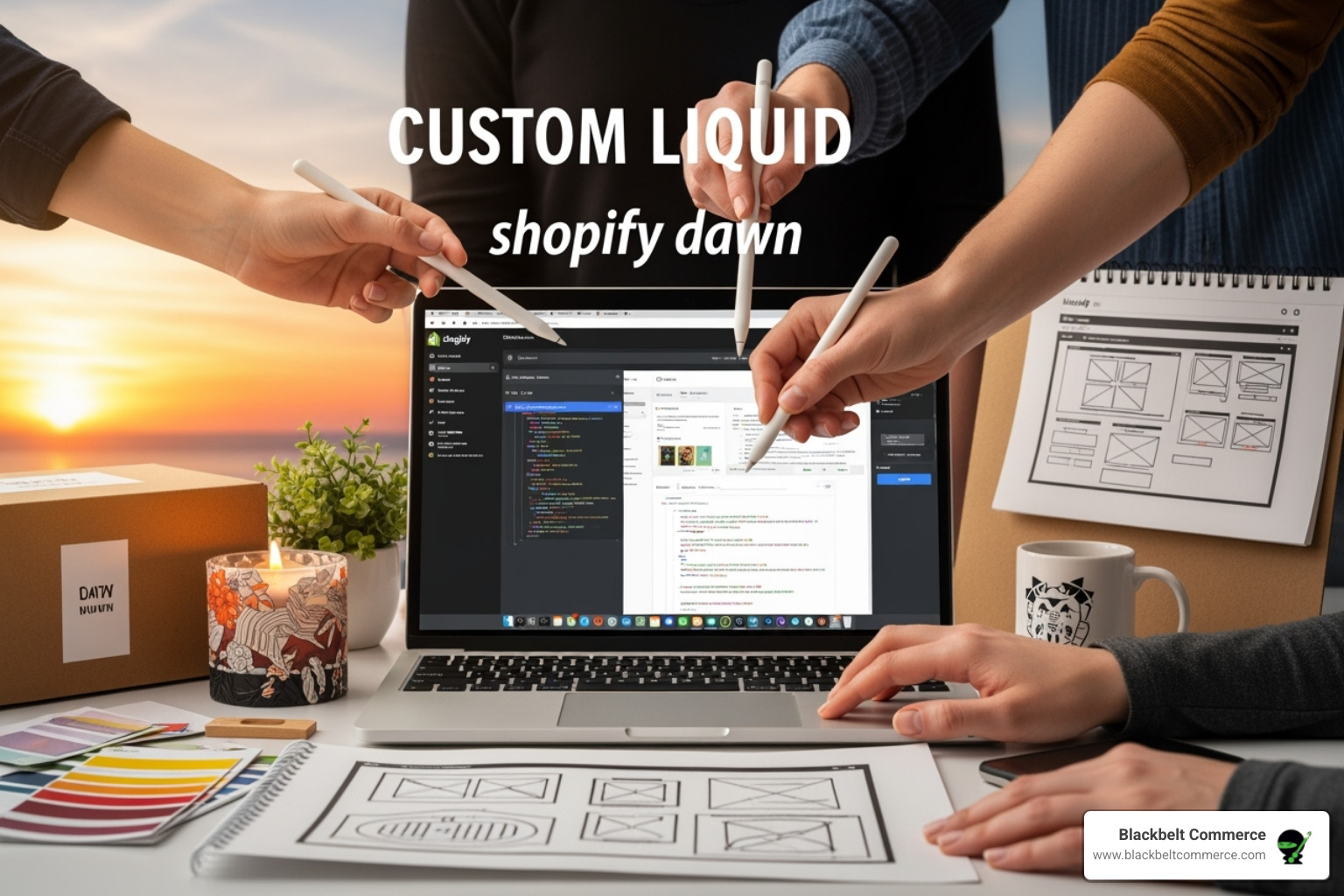
Use this method for quick banners, forms or snippets that don’t need their own file.
Method 2 – Create a Dedicated Section File (full control)
- Online Store › Themes › Actions › Edit code.
- Inside the sections folder click Add a new section. Name it (e.g.,
my-custom-feature.liquid). - Add your markup plus a settings schema so the section is editable in the customizer.
<div class="section-{{ section.id }} page-width"> {% if section.settings.title %} <h2>{{ section.settings.title }}</h2> {% endif %} {{ section.settings.custom_html }} </div> {% schema %} { "name": "My Custom Feature", "settings": [ { "type": "text", "id": "title", "label": "Heading", "default": "Welcome to Our Custom Section" }, { "type": "html", "id": "custom_html", "label": "Custom HTML/Liquid" } ], "presets": [{ "name": "My Custom Feature", "category": "Custom Sections" }] } {% endschema %} Save, then add the section just like any native Dawn block. This approach makes robust, reusable components that survive theme updates.
For deeper tips see our guide on how to customize a Shopify theme.
Practical Examples of Custom Liquid Shopify Dawn Customizations
Even small tweaks can lift conversions and reinforce your brand. Below are three client-tested examples you can copy-paste.
Displaying Dynamic Vendor Information
{% if product.vendor %} <p class="product-vendor"> Brand: <a href="{{ routes.collections_url }}/{{ product.vendor | handle }}">{{ product.vendor }}</a> </p> {% endif %} Linking the vendor name to its collection boosted one merchant’s cross-sell revenue by 23 percent. More ideas here: Automatically show vendors.
Adding a Custom-Styled Heading and Separator
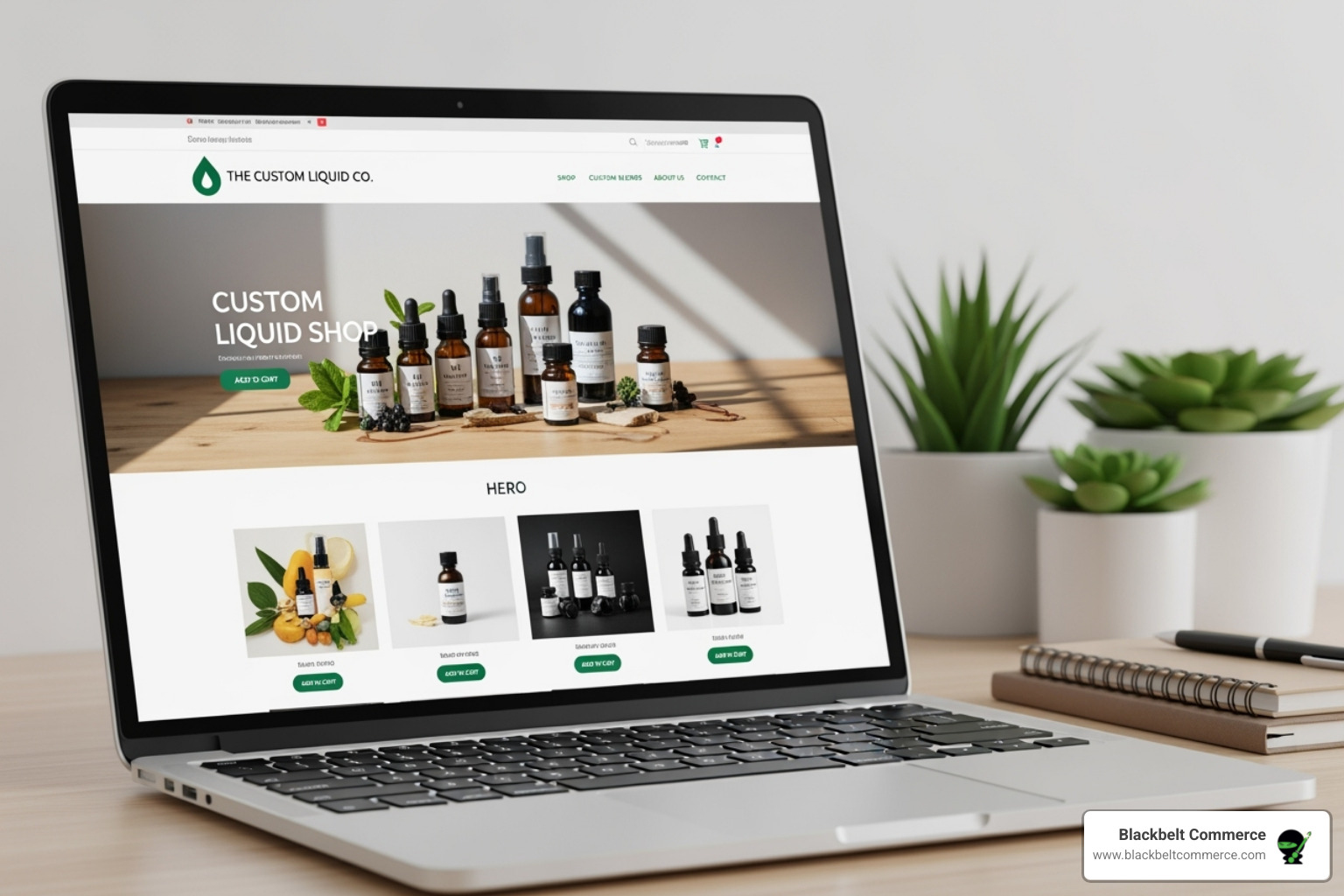
<div class="page-width"> <h2 class="custom-heading">Our Featured Products</h2> <hr class="custom-separator"> </div> <style> .custom-heading{margin:40px 0 20px;text-align:center;font-size:2.5rem;color:#333} .custom-separator{border:0;border-top:1px solid #eee;margin-bottom:40px} </style> Dynamic “Free Shipping” Message in the Cart
{% assign free_shipping_threshold = 10000 %} {# $100.00 #} {% assign amount_needed = free_shipping_threshold | minus: cart.total_price %} <div class="free-shipping-message"> {% if cart.total_price >= free_shipping_threshold %} <p>Congratulations! You’ve qualified for FREE shipping!</p> {% else %} <p>Spend {{ amount_needed | money }} more for FREE shipping!</p> {% endif %} </div> Stores using this nudge often see a 15-30 percent jump in average order value.
Styling and Managing Your Custom Code
Clean code looks better and survives theme updates.
Styling Tips
- Add unique classes in your Liquid markup, then place CSS in
base.cssor a dedicated custom file. - Use existing Dawn utilities like
page-width,text-centerand grid helpers to stay responsive without extra work. - Stick to relative units (
%,em,rem). Minimise inline styles—keep them only for quick tests.
Surviving Theme Updates
Theme updates overwrite core files, so:
- Never edit core templates directly. Use new sections or the “Custom Liquid” block instead.
- Update by installing the new theme version as a fresh copy, then migrate your custom sections.
- Compare old vs. new with a diff tool (e.g., Diffmate) or Git to spot custom code fast.
- Document every customization. A simple text file listing what you added—and why—can save hours later.
Follow these rules and your custom liquid shopify dawn work will keep paying dividends release after release.
Conclusion
We hope this guide has opened your eyes to the incredible possibilities that custom liquid shopify dawn brings to your online store. While Dawn gives you a solid foundation right out of the box, the real magic happens when you push beyond those standard theme editor limits and create something truly unique.
The beauty of custom Liquid lies in its flexibility. You can solve real business problems – like boosting average order values with dynamic shipping messages, improving brand visibility with custom vendor displays, or creating eye-catching design elements that make your store memorable. All while keeping your site fast and reliable, which is exactly what your customers (and Google) want to see.
Here’s what we’ve learned works best: start small and build confidence. Maybe begin with a simple custom heading or a basic product badge. Test everything thoroughly on a duplicated theme before going live. And always remember those best practices we covered – they’ll save you countless headaches when theme updates roll around.
The journey from a standard Dawn theme to a fully customized, conversion-optimized store doesn’t happen overnight. Every custom tweak you make is a step toward building a brand experience that stands out in today’s crowded marketplace. Some changes might seem small, but they often have the biggest impact on how customers perceive and interact with your store.
At Blackbelt Commerce, we’ve helped over 1000+ businesses transform their Shopify stores through strategic custom liquid shopify dawn implementations. Whether you need a quick custom section or a complete theme overhaul, we understand that every store has unique needs and goals. Our team specializes in creating fully customized, conversion-focused solutions that don’t just look great – they drive real results.
Want this done right the first time?
Blackbelt Commerce is a family-run Shopify Plus agency. We have been building, customizing, and optimizing Shopify stores since 2012 — the kind of work in this guide is what we do for merchants every day. If you would rather have an expert handle it (and make sure it is fast, mobile-friendly, and built to convert), we are the team our clients trust to get it done.
Book Your Free 30-Minute Strategy Call
Prefer to talk now? Call +1 (516) 704-9890
Frequently asked questions
How do I add custom Liquid to the Dawn theme?
Two ways. Fastest: in the theme editor click Add section, choose "Custom Liquid," and paste your code. For reusable, editable blocks: go to Actions › Edit code, open the sections folder, add a new .liquid file, and include a {% schema %} so it appears as a section. Always duplicate the theme first.
Does updating the Dawn theme delete my custom Liquid?
Yes, if your code lives directly in theme files, a theme update replaces those files and your edits are lost. Protect your work by keeping customizations in separate section files, documenting every change, and backing up (duplicating) the theme before you update. Many stores keep a change log for exactly this reason.
Why is my custom Liquid section not appearing on the page?
Usually the section file is missing a valid {% schema %} with a "presets" block, or it was added to the code but never inserted from the theme editor. Confirm the schema JSON is valid, the file is in the sections folder, and you clicked Add section on the specific template (home, product, etc.) where you want it.
Is Liquid hard to learn for a non-developer?
The basics are approachable. Liquid uses readable tags like {{ product.title }} and {% if %}, and simple output and logic can be picked up in an afternoon. Complex logic, loops, and metafields have a steeper curve — that is usually the point where store owners bring in help rather than keep experimenting on a live store.
How do I make custom Liquid sections responsive on mobile?
Wrap your markup in the theme's existing container classes so it inherits Dawn's responsive grid, and add mobile-first CSS using min-width media queries rather than fixed pixel widths. Test on the theme editor's mobile preview and a real phone — roughly the majority of Shopify traffic is mobile, so mobile layout is the priority, not an afterthought.
Should I use the built-in Custom Liquid section or a new section file?
Use the built-in Custom Liquid section for a quick, one-off addition to a single page. Create a dedicated section file when you want the block to be reusable, have editable settings in the theme editor, or survive cleanly through theme updates. The file approach is more work upfront but far easier to maintain.

