


Why Custom Pages are a Game-Changer for Your Shopify Store
When you create custom page in shopify, you open up the ability to build pages that truly reflect your brand’s identity and serve specific business goals. Instead of being limited to generic templates, you can design pages that engage customers, tell your story, and drive conversions in ways that standard pages simply can’t.
Quick Answer: How to Create Custom Page in Shopify
- Steer to Online Store > Themes > Customize in your Shopify admin.
- Select Pages from the top dropdown, then click Create template.
- Name your template and customize it by adding sections and blocks.
- Go to Online Store > Pages, then create or edit a page.
- Select your new custom template from the Theme template dropdown.
- Save and publish your page.
What are Custom Pages and Why Do They Matter?
A custom page in Shopify uses a unique template, distinct from the default layout your other pages share. This is crucial because standard pages, while functional, often lead to a frustratingly rigid and generic look. Your “About Us” page looks like everyone else’s, and your landing pages can’t be custom for specific campaigns.
Custom pages give you control over layout, content, and user experience. They matter because they allow you to:
- Create Unique Layouts: Break free from theme-imposed structures to design layouts that perfectly fit your content, whether it’s a compelling brand story or an interactive product guide.
- Build Customer Trust: Professional, custom-designed policy pages and detailed FAQs communicate transparency and build credibility.
- Forge a Memorable Brand Image: A cohesive, on-brand design across all pages creates a memorable experience that fosters brand loyalty.
- Increase Engagement & Conversions: Purpose-built pages, like dedicated campaign landing pages, are designed to match ad creative and messaging, significantly boosting their effectiveness.
I’m Cesar A Beltran, CEO of Blackbelt Commerce, and over 15+ years I’ve helped over 1,000 businesses create custom pages in Shopify that drive measurable results. In this guide, I’ll show you how to build custom pages that lift your store’s performance.
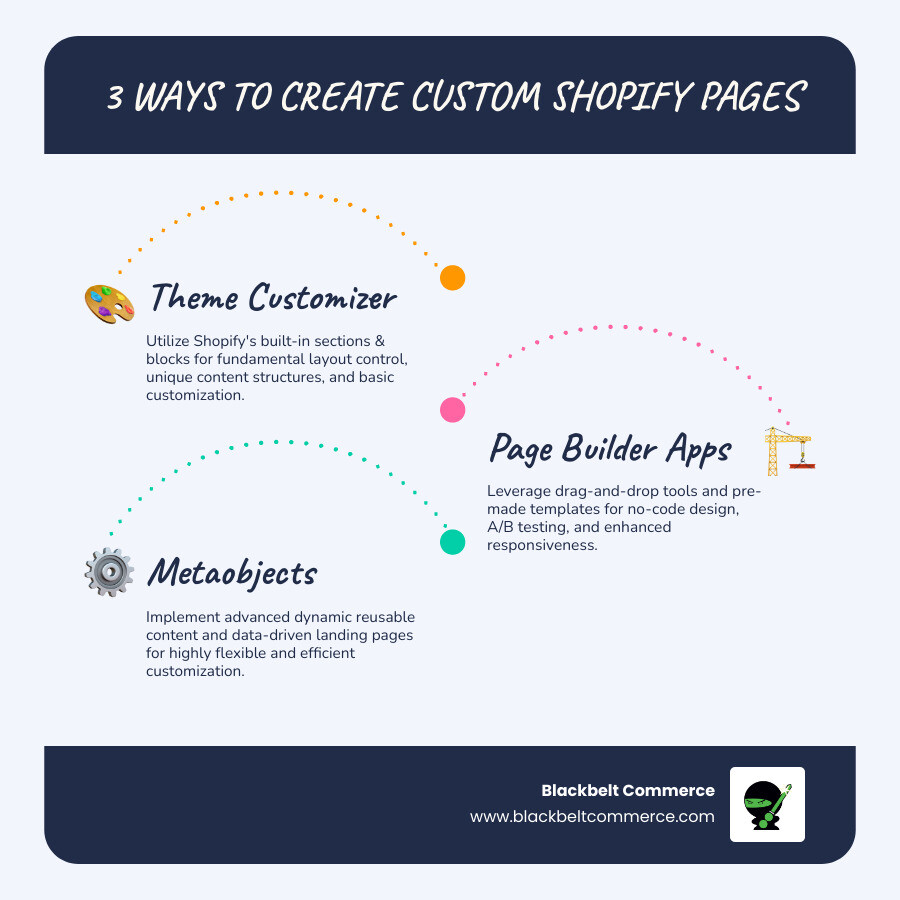
Create custom page in shopify terms to learn:
Key Use Cases to Lift Your Store
Custom pages are powerful tools for improving user experience and driving sales. Here are key ways we leverage them for our clients:
- Marketing Campaign Landing Pages: Create dedicated pages for new products or promotions that match your campaign’s theme and messaging for higher conversion rates.
- Comprehensive FAQ Pages: Reduce support tickets with well-organized, searchable FAQ pages that provide customers with instant answers.
- Product Guides and Tutorials: Help customers make informed decisions and reduce post-purchase questions with detailed guides for complex products.
- Brand Mission and “About Us” Pages: Tell your brand’s story in a visually rich format that connects with your audience on an emotional level.
- Showcasing Reviews and Testimonials: Build credibility with a dedicated page that highlights positive feedback from satisfied customers using text, photos, or videos.
- Legal Pages (Privacy, Terms, Refund Policy): Build trust and ensure compliance with clear, professionally presented policy pages.
By strategically implementing these custom pages, we empower clients to create more engaging and efficient online stores. If you’re looking to improve your store’s design, our Shopify web design services can help.
A Step-by-Step Guide to Create a Custom Page in Shopify
Let’s explore the “how.” Thanks to Shopify’s Online Store 2.0, what used to be a developer-only task is now accessible to any store owner. Using the theme customizer, you can visually build custom page templates with sections and blocks, just like you would a homepage.

Before OS 2.0, custom layouts required diving into Liquid code. Today, the process is far more intuitive. You’ll first create a template (a blueprint), then assign it to as many pages as you need. This gives you control to design the page structure itself, not just add text to a rigid box. For those ready to push the boundaries, our Shopify theme customization services can open up even more capabilities.
Step 1: Create a New Page Template in the Theme Customizer
First, we’ll build the blueprint for your page.
Go to Online Store > Themes in your Shopify admin. Find your current theme and click Customize.
At the top of the screen, click the dropdown menu (it usually says “Homepage”). Hover over Pages, then click the Create template option.
A window will pop up. Give your template a descriptive name like “Holiday Campaign” or “Custom About Us” for easy identification later. Click Create template.
If you don’t see the “Create template” option, it’s likely because your theme isn’t published or isn’t an OS 2.0 theme. We cover this in the FAQ section. For more details, see Shopify’s guide on creating new templates.
Step 2: Customize the Layout and Content of Your New Template
Now it’s time to design your template. To start with a clean slate, find the default “Page” section in the left sidebar and click the eye icon to hide it.
Click Add section to open a panel of pre-built modules. You’ll find options like Rich text, Image with text, Video, and Collapsible content (great for FAQs). Drag and drop these sections to build your desired layout.
Each section is customizable. Click on one to adjust its settings—add text, upload images, change colors, or rearrange blocks within it.
For advanced needs, use the Custom Liquid section. This lets you add your own HTML, CSS, or Liquid code for unique integrations or highly branded elements. At Blackbelt Commerce, we use custom Liquid code for Shopify to deliver one-of-a-kind solutions.
Remember to Save your work frequently.
Step 3: Assign the Custom Template to a New or Existing Page
With your template built, it’s time to apply it to a page.
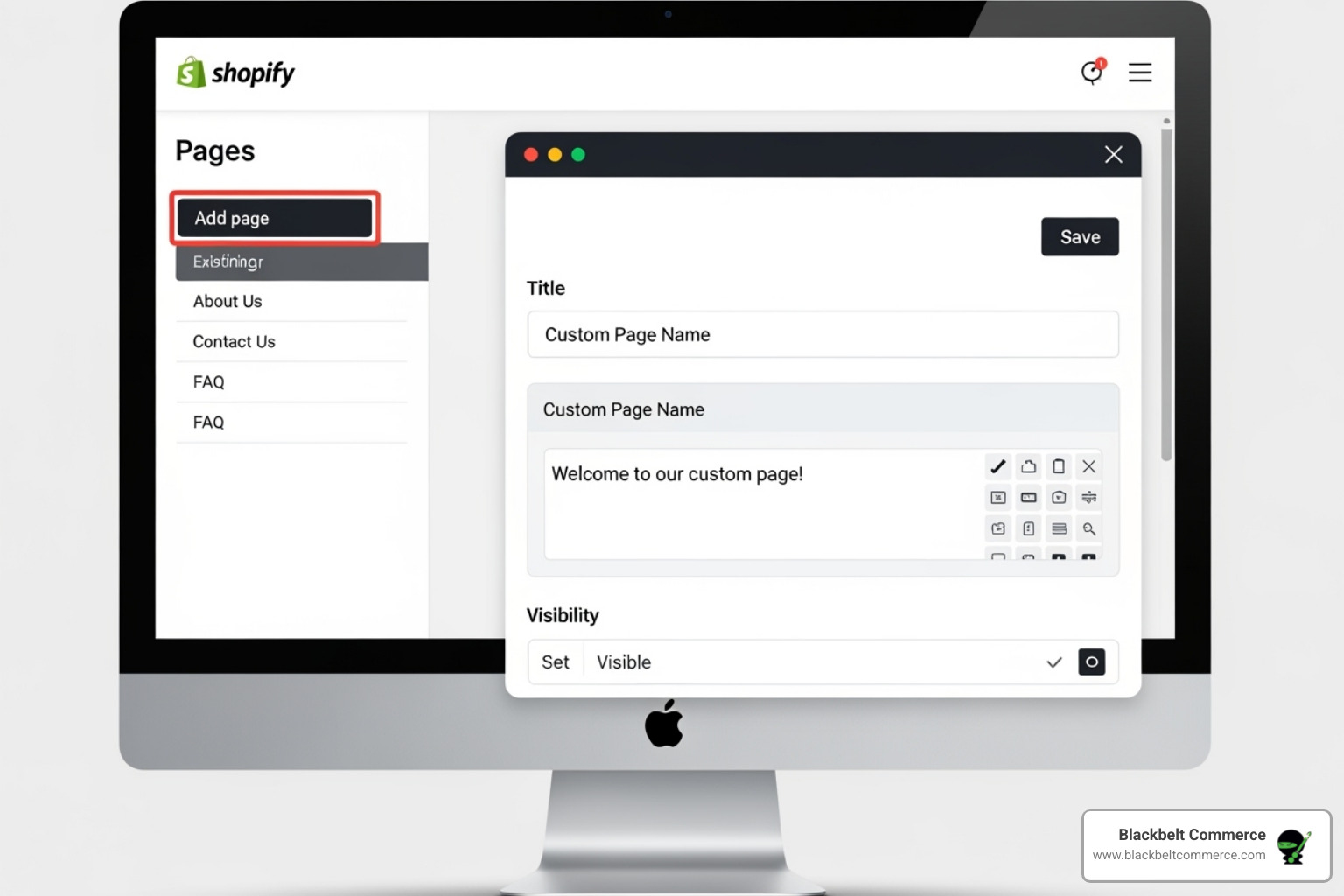
Go to Online Store > Pages in your Shopify admin. Either Add Page to create a new one or click an existing page to edit it.
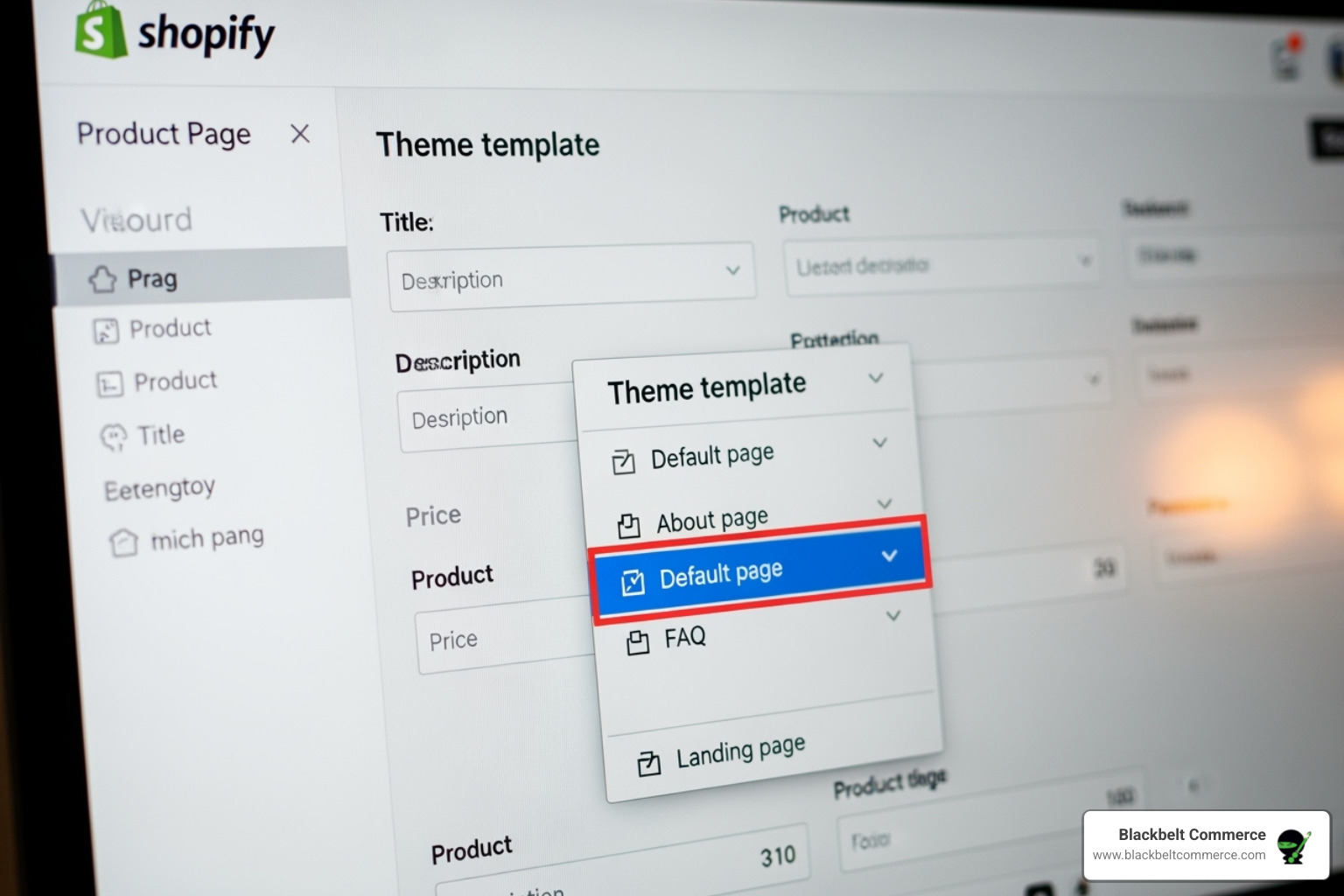
On the page editor screen, look for the Theme template dropdown in the right sidebar. Click it and select the custom template you just created.
Click Save. Your page will now display the unique layout you designed. If a new page looks identical to an old one, it’s because it’s still using the default template. Simply assign your new custom template to fix this. This is the key to changing a generic page into a conversion-focused asset.
Advanced Customization: Beyond the Default Editor
While Shopify’s theme customizer is powerful, you may eventually need more control for complex layouts or dynamic content. The standard page editor is a content tool, not a layout designer; you’re filling a predefined container. For pixel-perfect control, A/B testing, or advanced integrations, you’ll need to explore more sophisticated tools.
Here’s how different tools stack up when you create custom page in shopify:
Factual table note: Service costs vary by scope, platform complexity, market, and team seniority. Avoid treating unsourced ranges as guaranteed pricing.
When to Use a Shopify Page Builder App
For true design freedom without code, a Shopify page builder app (like PageFly, GemPages, or Shogun) is your best option. These apps offer a no-code solution with an intuitive drag-and-drop interface, making it easy to create stunning, high-converting pages.
Key benefits include:
- Ready-to-use templates: Speed up your design process for landing pages, promotions, and more by starting with a professional template.
- Granular design control: Precisely customize fonts, colors, spacing, and animations without writing CSS.
- Built-in A/B testing: Optimize your pages for conversions by testing different headlines, images, and layouts to see what performs best.
- Advanced mobile responsiveness: Fine-tune how your pages appear on different screen sizes, ensuring a perfect experience for every visitor.
Page builders integrate seamlessly with Shopify, making them an invaluable investment for businesses focused on creating unique landing pages and custom product pages. Learn more about these tools with our insights on shopify builder.
How to create custom page in shopify with Metaobjects
Metaobjects are Shopify’s solution for managing structured, reusable content at scale. If you find yourself creating similar pages repeatedly (e.g., team profiles, case studies, feature highlights), metaobjects can save you a tremendous amount of time.
Think of them as a custom database. You define a structure with specific fields (like “Name,” “Biography,” “Profile Picture”), and then create entries that follow that structure. By enabling the “Web pages” feature, Shopify can automatically generate a unique page for each entry.
The process involves:
- Defining the metaobject structure with all the fields you need.
- Creating entries for each item (e.g., each team member).
- Building a single theme template in the customizer for your metaobject.
- Connecting the fields to your template using dynamic sources.
The beauty of this is scalability and consistency. To add a new team member, you just create a new entry, and the page is automatically generated with the correct design. This is perfect for ambassador profiles, location pages, or comprehensive FAQs. While it requires some initial setup, the long-term benefits in efficiency and organization are significant. For a technical deep-dive, see Shopify’s guide on building web pages with metaobjects.
Optimizing and Managing Your New Custom Pages
Building a custom page is just the first step. To make it effective, you need to optimize it for search engines, manage its visibility, and integrate it into your store’s navigation. Shopify provides all the tools you need to ensure your new pages deliver results.
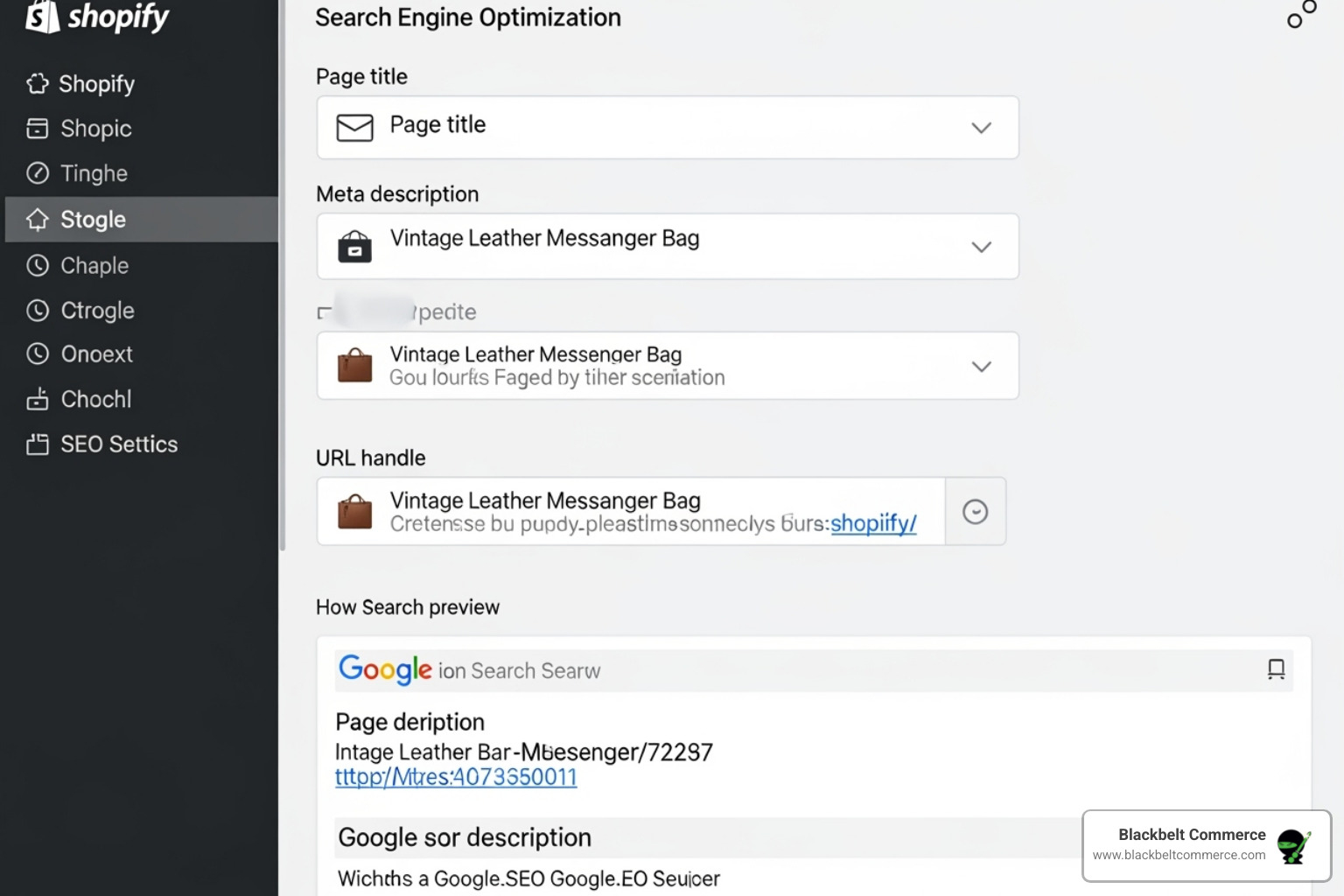
How to create custom page in shopify and optimize it for SEO
To ensure customers can find your new page, you need to optimize it for search engines. In the Shopify page admin, find the “Search engine listing preview” section and click “Edit.”
- Page Title: This is your first impression in search results. Make it descriptive, include your primary keyword, and keep it under 70 characters. For example, “About Blackbelt Commerce | Custom Shopify Development in NYC.”
- Meta Description: This is your 160-character sales pitch to searchers. Make it compelling and include relevant keywords to encourage clicks.
- URL Handle: Keep the URL short, descriptive, and keyword-rich (e.g.,
custom-shopify-development). Use hyphens to separate words. If you change a URL, be sure to set up a redirect.
Beyond these settings, focus on creating high-quality content that naturally incorporates your target keywords. Google rewards pages that provide real value to users. Also, use descriptive image alt text to improve accessibility and help search engines understand your images. This is a core principle we follow when building a website on shopify that performs well.
Managing Page Settings, Visibility, and Navigation
Once your page is optimized, you need to control how and when it appears.
- Preview Your Page: Always use the “View page” link to check how your design looks on desktop and mobile devices before publishing.
- Control Visibility: In the page settings, you can set your page to be visible, hidden (draft), or schedule it to publish at a future date and time—perfect for coordinating marketing campaigns.
- Use Bulk Actions: From the Online Store > Pages list, you can select multiple pages to publish, unpublish, or delete them all at once, saving significant time.
- Add to Navigation: A page is useless if no one can find it. Go to Online Store > Navigation to add your new page to your main menu or footer. Policy pages usually go in the footer, while an “About Us” page might belong in the main menu.
Thoughtful management ensures your custom pages become integrated, functional parts of your store that guide customers and support your business goals.
Frequently Asked Questions about Creating Custom Shopify Pages
Here are answers to common questions merchants ask when they create custom page in shopify.
Why can’t I see the ‘Create Template’ option in my theme customizer?
This is a common issue with a few likely causes:
- Unpublished Theme: The option to create templates only appears for your live, published theme. If you’re working on a draft, you may need to publish it first.
- Older Theme Version: This feature is exclusive to Online Store 2.0 (OS 2.0) themes. If you’re using an older “vintage” theme, you won’t have this option in the customizer.
- Browser Cache: Your browser might be showing an outdated version of the page. Try clearing your cache or using an incognito window.
If you’ve checked these and still have issues, it could be a theme-specific bug, and you should contact your theme developer. For more troubleshooting, see this Shopify Community discussion on the missing ‘Create template’ option.
Why does my new page look exactly like another page?
This happens because by default, Shopify assigns all new pages to the default page template. If your “About Us” and “Contact Us” pages look the same, it’s because they are sharing the same underlying blueprint. Any changes made to that default template will affect all pages using it.
The solution is to create a new, unique template for your page in the theme customizer, and then assign that template to your page using the “Theme template” dropdown in the page editor. This gives the page its own independent design.
How do I add a Google Map to my custom page?
Adding a map is great for “Contact Us” or “About Us” pages, especially if you have a physical location in a place like Brooklyn or Queens.
- Go to Google Maps, find your address, and click the Share icon.
- Select the Embed a map tab and copy the provided HTML code (it starts with
<iframe...). - In your Shopify admin, go to the page where you want the map. In the Content editor, click the Show HTML (
</>) button. - Paste the embed code into the HTML view where you want the map to appear.
- Click Save. Your interactive map will now be displayed on the page.
Conclusion
When you create custom page in shopify, you’re doing more than just adding a new URL. You’re taking control of your brand’s narrative and designing experiences that are intentional, authentic, and memorable. While generic templates get the job done, custom pages are what make customers connect with your brand and convert.
At Blackbelt Commerce, we’ve seen that stores investing in custom, conversion-focused design consistently outperform the competition. They see higher engagement, better conversion rates, and stronger customer loyalty. With Online Store 2.0, these powerful pages are more accessible than ever.
However, bringing a strategic vision to life requires expertise. For over 15 years, we’ve specialized in fully customized Shopify solutions that deliver measurable results. We don’t just build pages that look good; we build assets that work for your business.
Your store deserves better than cookie-cutter templates. It deserves pages that reflect your brand’s personality and achieve your business goals.
Ready to build something remarkable? Get expert help with your Shopify theme customization and let our team show you what’s possible.
Start your custom Shopify project today and give your store the custom pages it deserves.
Quick Answer: Create custom page in shopify
A Create custom page in shopify is a tailored ecommerce build designed around a merchant’s operations, customer journey, integrations, and growth goals. It is useful when a standard theme or app stack cannot deliver the experience, workflows, or performance the business needs.
Want a sharper Shopify growth plan?
If this article connects to a current store decision, use the calendar to book a strategy call and turn the idea into a practical plan.
Key Takeaways
- Create custom page in shopify should answer the reader’s immediate question and then connect the advice to a practical Shopify business decision.
- The article should feel specific, useful, and worth sharing rather than like a generic SEO insert.
- Internal links should reinforce the home page, Shopify experts, Shopify Plus agencies, and the most relevant service pages.
- The commercial bridge should connect the topic to the Shopify Growth, CRO, and Store Optimization cluster without interrupting the educational flow.
- The same-page Calendly CTA should let qualified readers book a strategy call without leaving the article.
How this connects to your Shopify growth strategy
This article should remain useful for readers researching Create custom page in shopify, but it also needs to show when the topic becomes a business decision. For the Shopify Growth, CRO, and Store Optimization cluster, the commercial bridge is practical: once the reader understands the concept, the next step is deciding whether their current Shopify setup can support the desired experience, conversion path, and operational workflow. That is where expert planning, design, development, CRO, and SEO support can turn the idea into measurable store improvements.
Want a sharper Shopify growth plan?
Use this guide as a decision tool. Then book a strategy call when you want a practical roadmap for your store.
Related Shopify resources
These internal resources support the Shopify Growth, CRO, and Store Optimization topic cluster and help connect this guide to stronger commercial next steps:
- Shopify CRO
- Shopify experts
- Shopify Plus agencies
- Shopify CRO — Parent service page for the reader’s next commercial step
- Blackbelt Commerce — Home-page authority link for brand and core Shopify expertise
- Shopify experts — Money-page link requested for expert-hiring intent
- Shopify Plus agencies — Money-page link requested for high-growth and Plus-agency intent
- Shopify custom development — Development service page for implementation and technical help
- Shopify checkout optimization — Related conversion article
- Shopify conversion optimization — Related CRO article
Questions store owners ask before taking action
Why does Create custom page in shopify matter for Shopify merchants?
Create custom page in shopify matters when it affects customer trust, store performance, conversion, operations, or the ability to grow without avoidable rework.
What should the reader do first?
They should identify the business goal, review the current customer journey, and decide which improvement would have the clearest impact.
How do internal links help this article?
Internal links connect the educational topic to related service pages, Shopify experts, Shopify Plus agency support, and deeper resources.
When is expert help useful?
Expert help is useful when the decision affects revenue, SEO, conversion, integrations, technical implementation, or a high-risk store change.
How does this article support lead generation?
It educates first, then gives qualified readers a same-page option to book a strategy call when they need help applying the advice.
Future articles needed for topical dominance
To build deeper topical authority around this cluster, these supporting topics should be created later and linked back into this article:
- Create Custom Page In Shopify Checklist for Shopify Store Owners: Creates a practical support article that turns the Shopify Growth, CRO, and Store Optimization topic into an actionable review tool.
- Common Create Custom Page In Shopify Mistakes and How to Avoid Them: Captures problem-aware searches and gives BBC a natural place to explain implementation risks without hard selling.
- When to Hire Shopify Experts for Create Custom Page In Shopify: Connects informational demand to the expert-hiring money page while preserving educational intent.
Want a sharper Shopify growth plan?
Ready to turn the advice in this article into an action plan? Open the calendar here and choose a time that works for you.

